
By Popular Demand: Ham Radio General Class Training

Got your Technician Class ham license? Want to upgrade to General? Here’s your chance! I’ve had excellent feedback regarding my series of video introductions for the Technician Class License, and several have asked when the General Class series is coming. The answer: Now! But I’m not going to try it all by myself. Lew French, KCØUER, has signed on to help make videos, and we’re soliciting other volunteers too. Watch this short video (less than four minutes) to meet both Lew and me.

We will follow the same format as before. The text is the ARRL General Class License Manual. For details, you can click here and refer your friends to ke0og.net/general for details and the lesson list.
Posted in General Class License Training, Ham Radio blog entries | Tagged | 3 Comments

Skybeam: I think it’s fixed!

I’ve been having a terrible time with Skybeam.com, my ISP. Starting around December 3rd, my speeds were “inverted.” I pay for their 7 Mbps service, which unlike any other definition actually means 5 Mbps down and 2 Mbps down. (For most ISPs, the number they advertise is the peak download speed.) Well, after numerous calls to tech support to let them know I was still here, it appears the problem is fixed. Last night I noticed that downloads seemed to come quickly, so I did a speedtest and was pleasantly surprised. And it seems to be holding today.

I’ve posted numerous times (see this post which has links to the rest of the posts) on the problem. What’s the big deal, you say? Well, I work at home, so the higher speed is nice. Plus, to watch videos, a link of at least 3 Mbps is required to prevent interruptions.

Skybeam is the only realistic ISP around here, and I’m grateful they serve rural, out-of-the-way areas. I’ve tried the alternative, which is satellite internet, which is a joke—the delay times are terrible. In fact, the fastest I could get on my old satellite service for work-related matters was less than dial-up! So, if you’re thinking of satellite internet, think very closely about how you’ll use it. It’s okay for casual web browsing or watching movies, but that’s about it.

I’ve got my fingers crossed that the Skybeam problem will stay fixed!

Posted in Computer Tips | Tagged , | Comments Off on Skybeam: I think it’s fixed!

To Slash the Zero or Not to Slash the Zero: Ham Radio Callsigns in the Tenth Call Area

My callsign, KEØOG, is an example of a call in the tenth call area, with the 10 being represented by a 0 (zero). The idea of 0 for 10 is an old one, going back to the old Stroger telephone exchanges—if you dialed a 0 you hear ten clicks (pulses). Anyway, my callsign appears as KE0OG on my license. Many callsigns suffer from the “zero ambiguity,” as the zero can sometimes be interpreted as the letter O. For example, if my callsign were really KØOG, and it appears as K0OG, it could be interpreted as either KOØG or KØOG, both of which are legitimate callsigns.

Since most alphabets make little distinction between the zero and the letter O, we either live with it and hope we can tell via context, or else we use the Alt-0-2-1-6 trick to create the Scandinavian letter Ø. There’s a problem, however. I own the URL ke0og.net (note the slashed zero in the “code” font), which points at the ham radio page on this site. However, if someone types in keØog.net, then DNS doesn’t know what to do with it and returns a “not found” error. In fact, the Scandinavian Ø is an illegal character that can’t be used in a URL (I tried).

The other option is to use a font in which the zeros are slashed. There are several such fonts available. I thank friend and reader Eric Smith, WAØUAV, for pointing out an excellent article on the subject. The article, which includes several sample fonts, may be found here at K8ZT’s website. Using such fonts is cool for printed materials, but does not offer much help for web sites. The reason is that the web site author doesn’t really have control over the font used to display the text—it can appear differently in different web browsers on different computers.

So what’s the solution? I don’t know—feel free to comment. In QST the ARRL uses a slash-zero font, but only for callsigns. For the web, I’ll keep using the ALT-0-2-1-6 trick (while holding down the Alt key, type 0216 on the numeric keypad, then release the Alt key). I’ll give a couple of the fonts a try for printed material.

Posted in Ham Radio blog entries | Tagged , | 2 Comments

Skybeam Still a Fallen Star

My issues with Skybeam, my Internet Service Provider, continue. (This is my ninth post; see previous posts here, here, here, here, here, here, here, and here.) I pay for their 7 Mbps service, which means 5 Mbps up and 2 Mbps down. What I’m getting, since Dec 3rd, is the opposite, meaning only 2 Mbps down (and that not all the time). I’ve chronicled my long saga of being treated like a mushroom—and in the meantime there’s been no change. The latest status I received (yesterday) is that there’s an issue with the “Hall” tower with a misalignment. I simply replied that I’m still here and hope they haven’t forgotten me. I’m not the only customer in the area with the problem.

The service acts exactly as it should, except for the downlink cap. The ping times are good, the VoIP works just fine, etc. This problem is not caused by a “misalignment” (meaning antennas aren’t pointed at each other), but rather it’s a problem with the settings in some piece of equipment somewhere that’s enforcing the uplink and downlink speeds. So, I have little hope that fixing the “misalignment” issue will solve the problem. I’m a grateful customer—after all, only they serve the remote area where I live, but I’m also an unhappy customer, because they’re not giving me what I’m paying for, which BTW they have shown themselves capable of doing in the past.

Posted in Computer Tips | Tagged | Comments Off on Skybeam Still a Fallen Star

Ten-Tec Jupiter Line Input Mod: I’ll skip this one, thanks

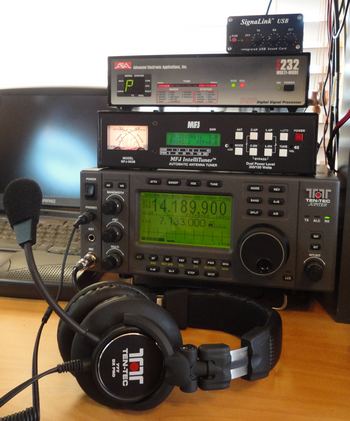
ten-tec-jupiter-station

My Ten-Tec Jupiter-based station. In the foreground is my Ten-Tec 777 headset. Behind that is my Ten-Tec 538 Jupiter (early model). Atop that is an MFJ-993B IntelliTuner automatic antenna tuner. Atop that is an elderly AEA (now Timewave) DSP-232 running APRS in conjunction with the laptop at the left and an unseen VHF radio set to 144.390 MHz. At the very top is a SignaLink USB that I use between the Jupiter and my computer for digital modes such as PSK-31.

I love my Ten-Tec Jupiter. Very good rig! But I noted earlier that I had trouble feeding it audio for HF digital work because the line input via the AUX1 connector is remarkably sensitive. I had to put a 10:1 voltage divider in the SignaLink USB to cut the audio down to what the Jupiter would accept. It works, but the Jupiter is still too sensitive and the adjustment takes some finesse.

As it turns out, the later (black) Jupiters had a “small” modification so they wouldn’t be so sensitive. Thanks to reader Sal for pointing this out. Here’s the deal. Ten-Tec now offers a sound card interface similar in concept to the SignaLink USB, although without the knobs and adjustments. It’s called the “MODEL 712 – USB SOUNDCARD DIGITAL MODE ADAPTER CABLE.” But…there’s a warning that comes with the 712:

“NOTE ON USE WITH JUPITER HF TRANSCEIVER
“The earlier version of the Jupiter with the gray case and green screen is not usable with the 712 as a plug-and-play device. The later black case/blue screen Jupiter can be used as-is with 712. There is too much gain internal to the transceiver on the line input which makes use of the 712 problematic with the earlier Jupiter. There is a small hardware modification to the earlier Jupiter which will allow use of the 712 as a plug-and-play device; contact TenTec Service at (865) 428-0364 or service@tentec.com for information.”

I contacted Ten-Tec to inquire as to the “small hardware modification.” Garry Green, N4CJX, at Ten-Tec replied with a single JPEG image. I zero in on the relevant part in the following photo. Continue reading

Posted in Ham Radio blog entries | Tagged | 5 Comments

CyberLink PowerDirector: Green Screen Doesn’t Have To Cover Entire Frame

CyberLink PowerDirector is my video editor of choice. Great product! (Sadly, like all software these days, it’s lightly documented.) I just figured out an interesting way to do green screen without having the green screen cover the entire frame.

That sure makes things easier. I did the ham radio videos using green screen. I took video of myself in front of a green screen that completely covered the frame. Then I substituted a photo for a background. I was hampered by the size and shape of the old movie screen I used to hold up the green cloth. This meant I really had to zoom in, which put me sitting very close to the green screen. And green light reflected from the cloth into my hair and coat, making it difficult to set the green screen controls right.

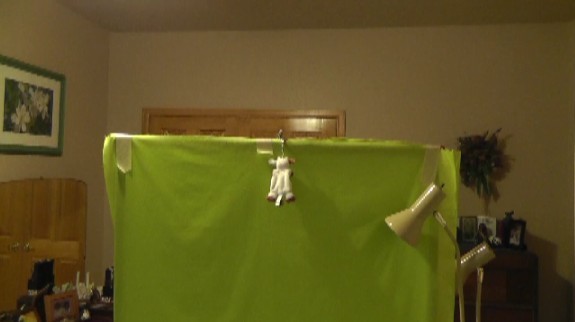
But! There’s an easier way! Take your shots of whatever you want to superimpose on something else with enough green screen to cover just that subject. Then, when you use Modify, you can create a mask that homes in on the green (and your subject), then go set the chroma key, and voila! you have your subject superimposed on the backdrop. Here are a few screen shots to illustrate how this is done.

Step 1

Step 1. Shoot video. Note that green screen does not cover the entire frame. Two objects are in front of the green screen--a small stuffed animal and a lamp.

  Continue reading

Posted in Computer Tips | Tagged , , , | 1 Comment

Skybeam: Still a falling star!

Skybeam is still broken. Yesterday I was given the same status I’ve been given for over a month: their best network engineers were working on the problem. I keep asking how I can escalate this so something actually gets done, but they just say that they’re actively working the problem.

Baloney! There aren’t that many network devices between me and them, and if necessary, someone should get in a car and drive to each (some located on mountaintops, etc.) to decide which node is at fault. Are they doing that? Of course not! If they did, they’d be on top of the problem in a day.

In spite of what they claim, I can’t help but think that the small number of us customers in this locality who are all experiencing the same problem is just too small a group for them to care. We’re paying for their 7 Mbps service which they interpret to mean 5 Mbps down and 2 Mbps up. But we’re getting 2 Mbps down and as much as 6 Mbps up! Everything else works well (good ping times, VoIP works well, etc.) but just this one thing. Unfortunately I really need the higher speed which is, BTW, the reason I’m paying for it!

C’mon Skybeam, get your act together!

Posted in Computer Tips | Tagged | Comments Off on Skybeam: Still a falling star!

Mormon.org: My profile is live

The website mormon.org allows members of the Mormon church to post personal profiles. I put mine together a couple days ago and it’s now live here. Check it out!

Posted in Personal | Tagged | Comments Off on Mormon.org: My profile is live

Kindle NCX file demystified

Kindle! Everyone wants their book on Kindle. And, everyone wants it to look gorgeous. As covered in previous posts (here for cover images, getting Kindlegen to recognize the cover image, and an introduction to the all-important OPF file), the key these days is a rather unruly piece of software called Kindlegen, which you can download from Amazon KDP for free.

Take a very deep breath, because we’re about to do a deep, deep dive! Continue reading

Posted in Computer Tips | Tagged , | 4 Comments

Opening a Command Window Directly

As I’ve been exploring how to use Kindlegen to prepare my new fantasy novel, The Unexpected Traveler, for upload to Kindle, I made a couple posts (see here, here, and here) about the Kindlegen experience. Reader Ellie O. sent me a great tip.

  1. Prepare a directory where you’ll do all your work. Copy (don’t move, but just copy) all the relevant files to this directory, such as your original DOC or ODT file, and any images you plan to add to what’s already in the DOC file. Your OPF and NCX files go here too.
  2. Copy kindlegen.exe from wherever you downloaded it to the same directory. You can go to your download directory, locate kindlegen.exe, right-click on it, and select Copy. Then go to your working directory, click in the white space, and right-click again. Select Paste.
  3. Prepare your HTML as usual. Make sure that the html file and all associated images end up in your working directory.
  4. Now, here comes the tip. Click in the white space in the working directory. Then, hold down the Shift key and at the same time right-click on the white space in the working directory. This gives you several options. The one you want is the option to Open command window here. Click (normal click) on this option. A command window (DOS window) opens right there, already pointed at your working directory, so you only have to type kindlegen myhtmlfile.html into the command window to invoke it.

That may sound a titch complicated, but actually it’s easier than the convoluted Amazon instructions. Give it a try! And thanks to Ellie O.!

(BTW, I’ve discovered that in Windows 7, this works only if you’ve navigated directly to your working directory. Getting to your working directory via a Library seems to keep this trick from working.)

Posted in Computer Tips | Tagged | Comments Off on Opening a Command Window Directly